Exclusion lists keep the businesses and prospects you never want to see again, such as current customers, competitors, or people you’ve already contacted, out of every future search. Your workspace has two permanent lists, one for businesses and one for prospects:
  • Applied everywhere, automatically. Anyone on a list is left out of all future chat results and exports, for every member of your workspace. That includes chats through the Vibe Prospecting connector in Claude and other AI assistants. You don’t need to mention the lists in your requests.
  • Up to 10,000 entries per list. The Exclusion Lists page shows how much of each list is in use.
  • Nothing else changes. Adding a list’s entries to an exclusion list doesn’t delete or modify the original list.
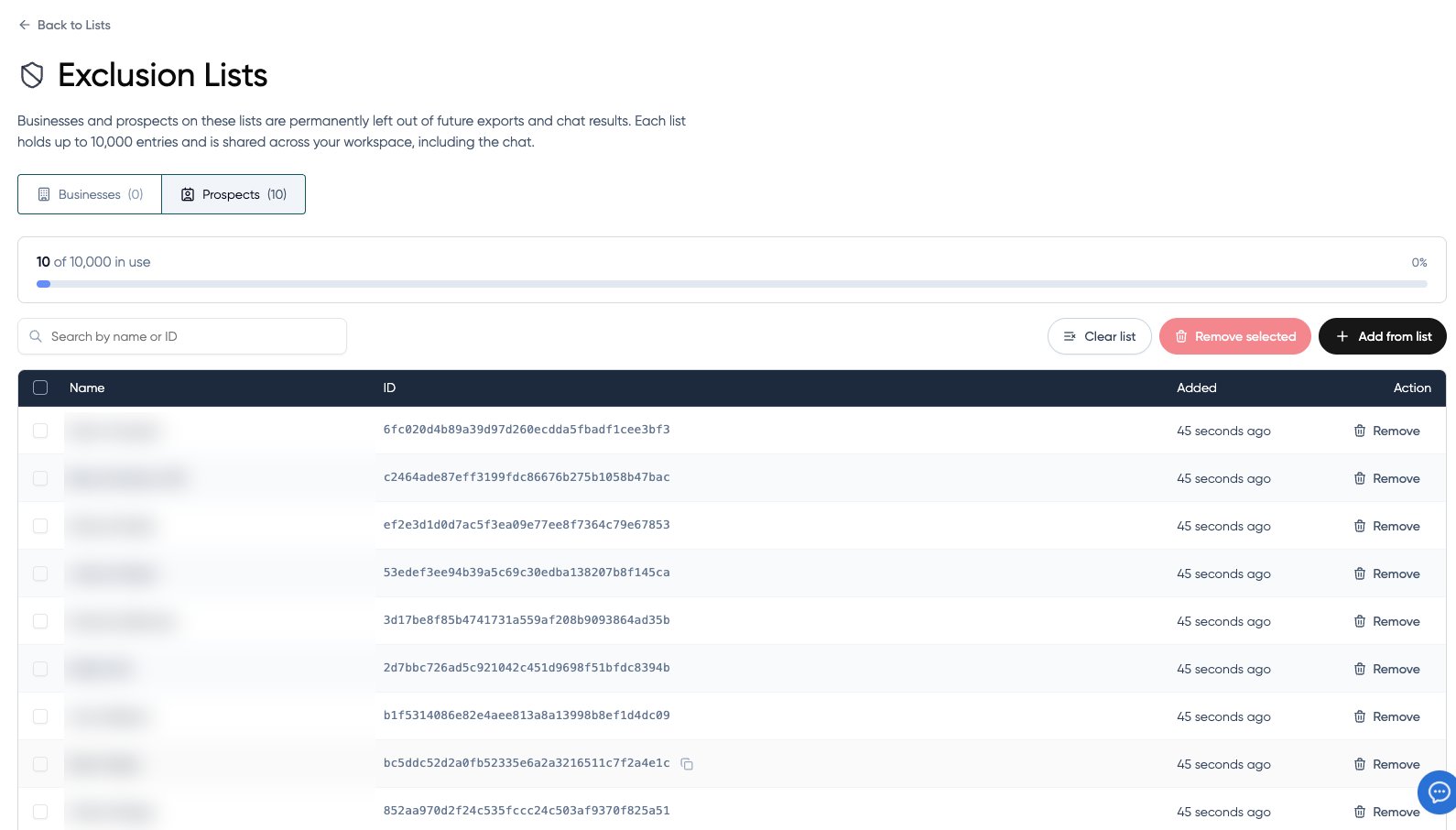
Exclusion Lists page showing the Prospects tab with 10 excluded prospects, their IDs, and Remove actions

The Prospects exclusion list, with search, bulk removal, and the 10,000-entry usage bar. Names are blurred in this example.

Where to find them

In the Hub, open Lists and click Exclusion Lists at the top of the page. Switch between the Businesses and Prospects tabs to see each list.

Adding to an exclusion list

From one of your lists

Add every business or prospect in a list you’ve already exported or uploaded:
  • From the Lists table: open the row’s ⋯ menu and choose Add to exclusion list.
  • From the Exclusion Lists page: click Add from list and pick one of your lists.
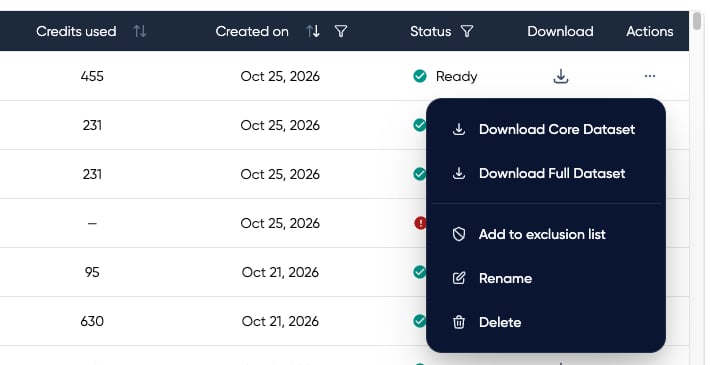
Lists table row menu with Download Core Dataset, Download Full Dataset, Add to exclusion list, Rename, and Delete

Add a whole list from its row menu on the Lists page.
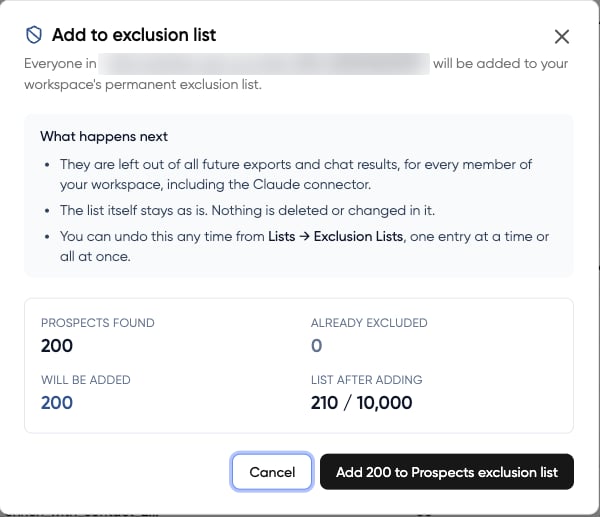
Before anything is added, a summary shows how many entries were found, how many are already excluded, how many will be added, and the list’s size afterwards. Entries already on the list are skipped, so adding the same list twice is safe.
Add to exclusion list confirmation showing 200 prospects found, 0 already excluded, 200 will be added, and 210 of 10,000 after adding

Review the counts, then confirm. Nothing changes in the original list.

From the chat

Ask in plain language:

Managing your lists

On the Exclusion Lists page, you can:
  • Search each list by name or ID.
  • Remove a single entry, select several and click Remove selected, or Clear list to remove everything on the current tab.
A newly added entry can briefly show only its ID while its name is looked up. You can also check and edit the lists from the chat:

Exclusion lists vs. one-off exclusions

You can still exclude results for a single search, for example “Find new VPs of Sales at fintech companies, but exclude anyone in my Q4 Outreach list.” That applies only to that search. Exclusion lists apply to every search, and the two work together.
Use exclusion lists for entities you’ll never want back, such as current customers and competitors. Use a one-off exclusion when you only want to avoid duplicates within a single campaign.